
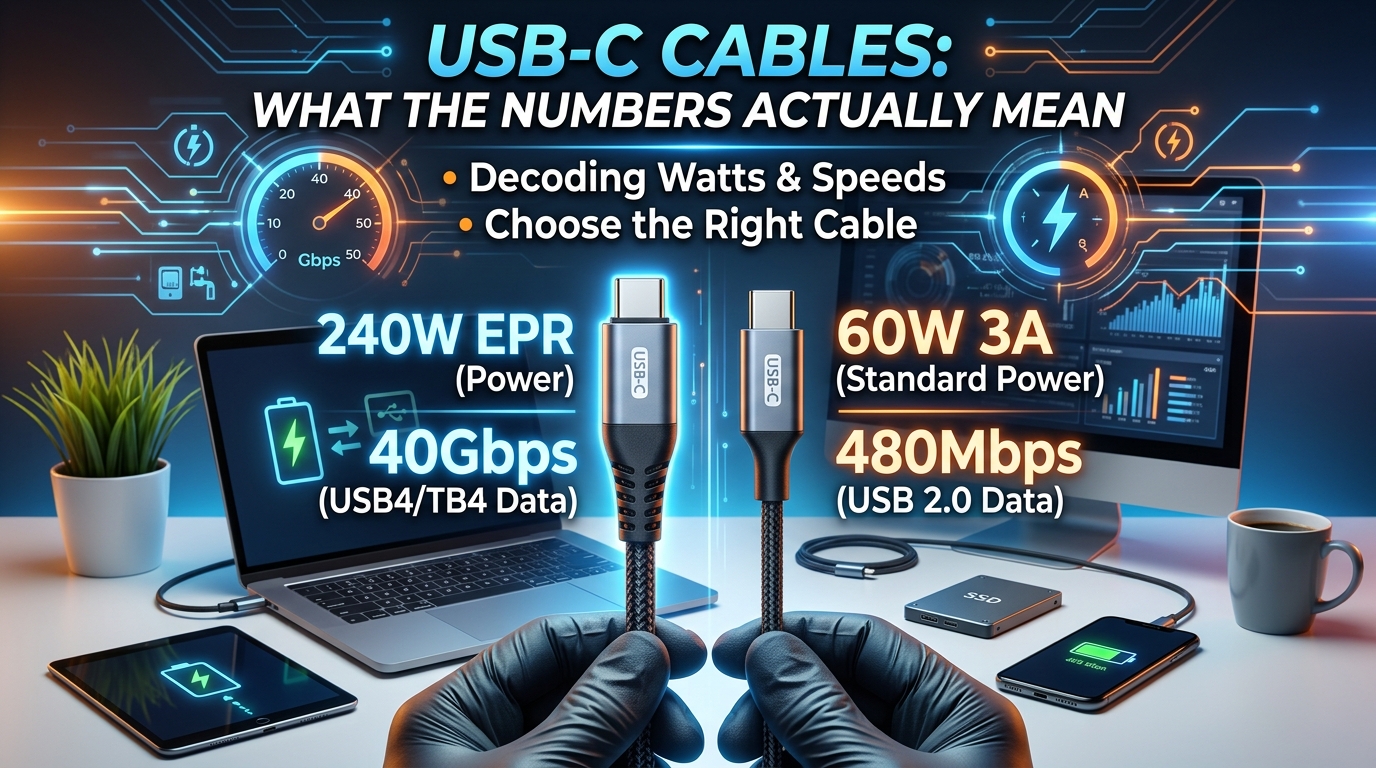
To most people, a cable is just a cable. If it plugs into your phone or laptop and the charging icon appears, job done. But with the universal adoption of USB-C, looking at two identical-looking cords can reveal completely different capabilities. One might take six hours to charge your laptop, while another powers it to full in under an hour.
Why? Because USB-C is just a connector shape, not a performance guarantee.
If you want to decode the labyrinth of marketing terms, wattages, and data speeds stamped on modern packaging, here is what those numbers actually mean.
1. The Power Numbers: Watts (W) and Amps (A)
When shopping for a USB-C charging cable, you will frequently see ratings like 60W, 100W, or 240W. These numbers dictate how much electrical power safely flows through the wire without overheating.
-
The 3A / 60W Tier: Perfect for smartphones, tablets, and lightweight ultraportable laptops (like a MacBook Air). Standard budget cables usually cap out here.
-
The 5A / 100W Tier: Essential for standard performance laptops (MacBook Pro 14-inch, Dell XPS, HP Spectre). These cables incorporate an E-Marker chip to safely negotiate higher currents.
-
The 5A / 240W (EPR) Tier: The heavy-duty tier introduced with USB PD 3.1. Required for power-hungry gaming laptops, portable monitors, and high-draw workstations.
Core Rule: Power is bottlenecked by the weakest link. A 240W cable paired with a 30W wall brick will only ever charge at 30W. Conversely, a 100W wall brick paired with a 60W cable will cap your device at 60W.
2. The Speed Numbers: Gbps and USB Generations
Data transfer speeds are where buyers get tripped up the most. Just because a cable has a USB-C tip does not mean it transfers data at lightning speed.
-
480 Mbps (USB 2.0): This is the speed of most basic “charging” cables. While fine for juice or moving a quick photo, transferring a 4K video library will feel like watching paint dry.
-
5 Gbps to 10 Gbps (USB 3.2 Gen 1 / Gen 2): Noticeably faster. Ideal for moving large files, connecting external SSDs, or standard data syncing.
-
20 Gbps to 40 Gbps (USB4 / Thunderbolt 3 & 4): Heavyweight data lines. These thick, heavily shielded cables are built to handle rapid file transfers, daisy-chained displays, and external GPUs.
3. Quick Checklist: Which Cable Do You Actually Need?
-
For Everyday Smartphone Charging: Any reputable 60W / 3A cable will do the job.
-
For Laptops & MacBooks: Look explicitly for 100W or 240W labeling with a built-in E-Marker chip to ensure you aren’t throttling your charging speeds.
-
For External Hard Drives & Monitors: Ignore the charging specs and check for USB 3.2, USB4, or Thunderbolt compatibility to ensure video and data signals pass through seamlessly.
Understanding these specifications saves you money, cuts down charging times, and ensures your hardware performs at its absolute best.
What is the most frustrating cable mix-up you’ve run into with your tech gear?